Mr Onion
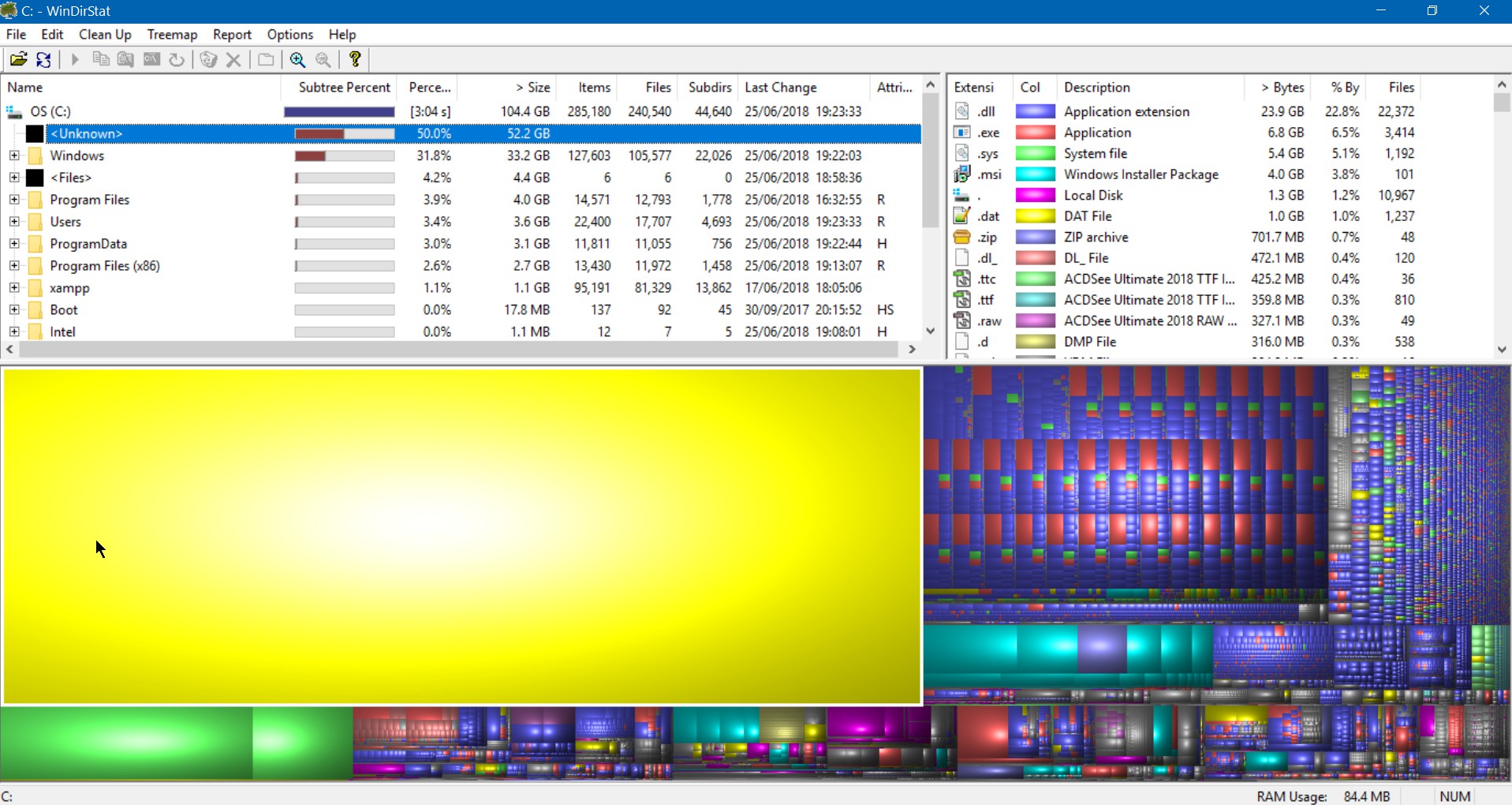
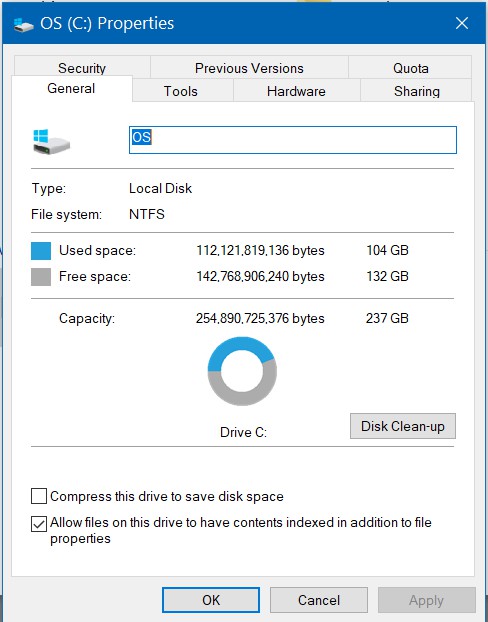
I wonder if you have any ideas for me on this odd problem I have. My ASUS ZenBook is showing its 250gb SSD as having 100gb + in use when its just the OS, programs, a few emails and XAMPP (which I use for writing phpBB forum extensions) there is no data stored on the machine other than that, so I have always thought 100gb was very high. All music, photos and the like is on my NAS or the 'real' PC. I have finally done some looking around and found WinDirStat which shows that I have almost exactly 50% of the used disk showing as <unknown> files/folders. They do not show in the C drive even with hidden files and folders shown.
Any idea how I can remove them? The WinDirStat delete function is greyed out when I right click on <unknown> and I have no idea how to search for them on the disk. I have tried chkdsk /f C: (I found that on line in an answer to a similar question) with no luck.
I have booted in Hirens which showed several unknown recycle bin entries that were not previously showing in the recycle bin. Deleting those has released about 10gb.
Have you any ideas (other than flatten the disk and re install)
I have attached screenshots showing the discrepancy. W10 1803 build
Many thanks
Disk.jpg
WinDirStat.jpg
Any idea how I can remove them? The WinDirStat delete function is greyed out when I right click on <unknown> and I have no idea how to search for them on the disk. I have tried chkdsk /f C: (I found that on line in an answer to a similar question) with no luck.
I have booted in Hirens which showed several unknown recycle bin entries that were not previously showing in the recycle bin. Deleting those has released about 10gb.
Have you any ideas (other than flatten the disk and re install)
I have attached screenshots showing the discrepancy. W10 1803 build
Many thanks
Disk.jpg
WinDirStat.jpg