This thread's last reply is from April 18, 2010, 3:36 AM UTC. Software, malware, and removal-tool
advice below may be out of date — treat specific steps and download links with caution.
Automated three-day notice: This topic had gone unanswered for more than three days. The original forum asked the author to post a link in its waiting-for-help queue within two days or the topic would be closed.
Hello and Welcome to Malware Removal Forums.
- My name is xixo_12 and I will guide you.
- Refrain from running self fixes as this will hinder the malware removal process.
- You may wish to print them off or copy the instruction into Notepad.
- If you have any question please don't hesitate to ask.
- The instructions that I will give to you are specific to your current problem and shouldn't be used on other systems.
- If you are receiving help or have received help on this problem elsewhere, please let us know.
- Keep interact with me until your computer is clean.
Please make sure you have done your reading on this topic :
How to get help at this forum
Please! If you need more time to do all the instructions, let me know before 72hours is done. Otherwise, your thread will be closed
First,
P2P software.
IMPORTANT: I notice there are signs of one or more
P2P (Peer to Peer) File Sharing Programs on your computer.
O4 - HKCU\..\Run: [BitTorrent DNA] "C:\Program Files\DNA\btdna.exe"
- It's not a good idea to have them.
- You will be sharing files from uncertified sources, and these are often infected. The bad guys use P2P filesharing as a major conduit to spread their wares.
- If you do not wish to remove your P2P programs, don't proceed with the next instruction and please tell me to close this topic.
Next,
OTM by Old Timer.
Please download from
HERE and save to the desktop.
- Double-click on OTM.exe.
- Copy the lines in the codebox below.
:processes
:files
C:\Program Files\DNA
:commands
[emptytemp]
[start explorer]
[reboot]
- Return to OTM, right click in the Paste Instructions for Items to be Moved window (under the yellow bar, Code box into OTMoveIt3 (1).) and choose Paste.
- Click the red Moveit! button.
- Copy everything in the Results window (under the green bar), and paste it in your next reply.
- Close OTM.
Note:
- If a file or folder cannot be moved immediately you may be asked to reboot the machine to finish the move process.
- If you are asked to reboot the machine choose Yes.
- In this case, after the reboot, open Notepad (Start->All Programs->Accessories->Notepad), click File->Open, in the File Name box enter *.log and press the Enter key, navigate to the C:\_OTM\MovedFiles folder, and open the newest .log file present, and copy/paste the contents of that document back here in your next post.
Next,
CKScanner.
Please download from
HERE and save to the desktop.
- Double click on CKScanner.exe to run it and click Search For Files.
- After a very short time, when the cursor hourglass disappears, click Save List To File.
- A message box will verify the file saved.
- Double-click the CKFiles.txt icon on your desktop and copy/paste the contents in your next reply.
Next,
Checklist.
Please post.
- Content of OTM log
- Content of CKFiles.txt
Hi,
Let's proceed.
First,
RSIT by random/random.
Please download from
HERE and save to the desktop.
- Double-click on RSIT.exe to run the tool.
- Click Continue at the disclaimer screen.
- Once it finishes, two logs will open.
- log.txt will be opened maximized
- info.txt will be opened minimized
- Please post the contents of both logs in your next post.
***You can find manually the log at
C:\rsit
Next,
GMER.
Please download from
HERE and save to the desktop.
- Unzip/extract the file to its own folder.
- Disconnect from the Internet and close all running programs.
There is a small chance this application may crash your computer so save any work you have open. - Double-click on Gmer.exe to start the program.
- Allow the gmer.sys driver to load if asked.
- If it gives you a warning at program start about rootkit activity and asks if you want to run a scan,click NO.
- Click on >>> symbol and choose on the Rootkit tab.
- Look at the right hand side (under Files) and uncheck all drives with the exception of your C drive.
- Make sure all other boxes on the right of the screen are checked, EXCEPT for "Show All".
- Click on the Scan and wait for the scan to finish.
Note: Before scanning, make sure all other running programs are closed and no other actions like a scheduled antivirus scan will occur while this scan completes. Also do not use your computer during the scan. - When completed, click on the Copy button and right-click on your Desktop, choose "New" > Text document. Once the file is created, open it and right-click again and choose Paste or Ctrl+V. Save the file as gmer.txt and copy the information in your next reply.
- Note: If you have any problems, try running GMER in SAFE MODE"
Important! Please do not select the "Show all" checkbox during the scan..
Next,
Checklist.
Please post.
- Content of log.txt and info.txt (Find both in c:\rsit)
- Content of GMER.txt
Hi,
Let's proceed.
First,
Registry related program.
- I notice you have the following program(s) installed.
Glary Registry Repair 3.0
Glary Utilities 2.20.0.831
- I strongly suggest you avoid anything that claims to clean, fix or optimize the Windows registry and recommend you to uninstall the above program(s). Even the best programs have occasionally made mistakes and made Windows inoperable by deleting critical registry entries. The gains are negligible and the risks are great.
- Worth for reading :
Next,
Fix entries.
- Run the HiJack This.
- Click on Do a system scan only button.
- Search the entries as below and tick at the small box.
O2 - BHO: Gamevance Text - {BEAC7DC8-E106-4C6A-931E-5A42E7362883} - (no file)
O4 - HKCU\..\Run: [BitTorrent DNA] "C:\Program Files\DNA\btdna.exe"
O16 - DPF: {DF780F87-FF2B-4DF8-92D0-73DB16A1543A} (PopCapLoader Object) - http://games.pogo.com/online2/pogo/chuz ... der_v6.cab
- Close any other program and leave HiJackThis program alone.
- Click Fix checked.
Next,
ERUNT by Lars Hederer
Download
ERUNT and save to the
desktop.
- Double click on erunt-setup.exe to install the program.
- Follow the prompts > uncheck Create NTREGOPT desktop icon at the Additional Tasks screen.
- Click No when you are prompted about creating an ERUNT entry in the startup folder.
- Next screen, uncheck Show documentation and check Launch ERUNT.
- If ERUNT doesnt start by itself, launch it from the desktop shortcut.
- At the configuration screen, make sure all 3 checkboxes are checked
- Click Ok to run the backup process
Note:
The backups can be restored from here:
C:\windows\ERDNT\<todays date>\ERDNT.exe
Next,
OTM by Old Timer.
- Double-click on OTM.exe.
- Copy the lines in the codebox below.
:processes
:reg
[-HKEY_LOCAL_MACHINE\SOFTWARE\Microsoft\Windows\CurrentVersion\Explorer\Browser Helper Objects\{BEAC7DC8-E106-4C6A-931E-5A42E7362883}]
[HKEY_CURRENT_USER\Software\Microsoft\Windows\CurrentVersion\Run]
"BitTorrent DNA"=-
[HKEY_LOCAL_MACHINE\system\currentcontrolset\services\sharedaccess\parameters\firewallpolicy\standardprofile\authorizedapplications\list]
"C:\Program Files\DNA\btdna.exe"=-
:files
C:\WINDOWS\tasks\GlaryInitialize.job
C:\Documents and Settings\wohlford\Application Data\GlarySoft
C:\Documents and Settings\wohlford\Application Data\DNA
C:\Documents and Settings\All Users\Application Data\Trymedia
:commands
[resethosts]
[emptytemp]
[start explorer]
[reboot]
- Return to OTM, right click in the Paste Instructions for Items to be Moved window (under the yellow bar, Code box into OTMoveIt3 (1).) and choose Paste.
- Click the red Moveit! button.
- Copy everything in the Results window (under the green bar), and paste it in your next reply.
- Close OTM.
Note:
- If a file or folder cannot be moved immediately you may be asked to reboot the machine to finish the move process.
- If you are asked to reboot the machine choose Yes.
- In this case, after the reboot, open Notepad (Start->All Programs->Accessories->Notepad), click File->Open, in the File Name box enter *.log and press the Enter key, navigate to the C:\_OTM\MovedFiles folder, and open the newest .log file present, and copy/paste the contents of that document back here in your next post.
Next,
SystemLook by jpshortstuff.
Please download from one of the links below and save it to the
Desktop.
Download Mirror #1
Download Mirror #2
Note: The log can also be found on your Desktop entitled
SystemLook.txt
Next,
Checklist.
Please post.
- Content of OTM log
- Content of SystemLook.txt
Hi,
Let's proceed
First,
Hard-Drive Maintenance
- Click Start > Run..., type in
CMD
- Click on OK.
- At the Command Prompt, type in:
CD C:\
- Hit the Enter/Return key.
- Now type in
DEFRAG C: -F
- Hit the Enter/Return key.
- A Analysis report will be displayed and then Windows will start the Defragmention run automatically.
- This may take some time, when completed the Command Prompt C:\> will appear same like the image below.

- Now type in
CHKDSK C: /R
- Hit the Enter/Return key.
- When prompted with:
CHKDSK cannot run because the volume is in use by another process
Would you like to schedule this volume to be checked next time the system restarts (Y/N)
- Type in Y and hit the Enter/Return key.
- Type in
EXIT
- Hit the Enter/Return key.
- Now Reboot(Restart) your computer.
Note: Upon Reboot(Restart) the CHKDSK(check-disk) will start and carry out the repairs required.
You should see a screen like this just after the Post(power on self test) screen:
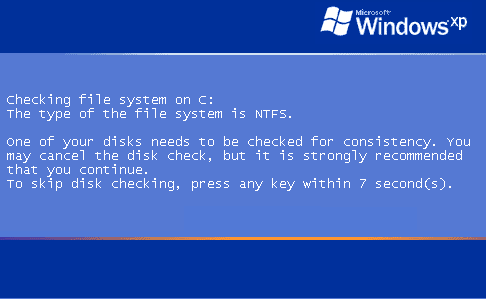 Note:
Note: Do not touch either the keyboard or Mouse, otherwise the Check-Disk will be cancelled and you computer will continue to boot-up as normal
Next,
Checklist.
Please post.
Good,
Let's proceed.
First,
Java is out of date.
It can be updated by the Java control panel
- Click on Start > Control Panel (Classic View) > Java (looks like a coffee cup) > Update Tab > Update Now.
- An update should begin.
- Follow the prompts.
Next,
ATF by Atribune
Please download
HERE and save to the desktop. Double-click
ATF Cleaner.exe to open it.
Under Main choose: choose: Select All
Click the Empty Selected button.
if you use Firefox: Click Firefox at the top and choose: Select All
Click the Empty Selected button.
NOTE: If you would like to keep your saved passwords, please click NO at the prompt.
if you use Opera: Click Opera at the top and choose: Select All
Click the Empty Selected button.
NOTE: If you would like to keep your saved passwords, please click NO at the prompt.
Click
Exit on the
Main menu to close the program
Next,
Kaspersky Online AV Scan
Note: Internet Explorer should be used.
Please go to
Kaspersky website and perform an online antivirus scan.
- Read through the requirements and privacy statement and click on Accept button.
- It will start downloading and installing the scanner and virus definitions. You will be prompted to install an application from Kaspersky. Click Run.
- When the downloads have finished, click on Settings.
- Make sure these boxes are checked (ticked). If they are not, please tick them and click on the Save button:
- Spyware, Adware, Dialers, and other potentially dangerous programs
- Archives
- Mail databases
- Click on My Computer under Scan and then put the kettle on!
- Once the scan is complete, it will display the results. Click on View Scan Report.
- You will see a list of infected items there. Click on Save Report As....
- Save this report to a convenient place like your Desktop. Change the Files of type to Text file (.txt) before clicking on the Save button.
- Copy and paste the report into your next.
Next,
Checklist.
Please post.
- Content of kaspersky scan log
Good!

Your system now is
clean.
Let's do some cleaning and management.
First,
OTM - Cleaning
- Double Click on OTM.exe.
- Click on CleanUp!.
- Select Yes when the "Begin cleanup Process?" prompt appears.
- If you are prompted to Reboot during the cleanup, select Yes.
- The tool will delete itself once it finishes, if not delete it by yourself.
Next,
You can proceed to delete the tools that involved in this process of removal
Next,
Your computer appear to be free from malware. Any further problem, I will advice you to seek the expert for hardware/system.
Good System/Hardware Help Forums
You may need to do free registration in order to post at their forum
 Additional Information :
SpywareBlaster.
Additional Information :
SpywareBlaster.
- SpywareBlaster help your Internet Explorer more strong as it will help to block known malicious ActiveX
- A tutorial on installing & using this product can be found HERE
Antivirus.
- Antivirus help you to give the maximum protection for the system.
- You are advice to have only ONE antivirus running on the system.
- Please keep it update regurlarly.
Malwarebytes' Anti-Malware.
- Malwarebytes' Anti-Malware is a new and powerful anti-malware tool
- Only realtime protection need to pay.
- Tutorial on installing & using this product can be found below:
WinPatrol.
- Unwanted things always occur behind your knowledge. Let's this software take the snapshot of it.
- For more information and installation can be found HERE
Windows/Program Update.
Please make sure to have your
Windows Automatic Update turn ON or you can do it manually.
Microsoft releases patches for Windows and Office products regularly to patch up Windows and Office products loopholes and fix any bugs found. Install the updates immediately if they are found.
To update Windows
- Go to Start > All Programs > Windows Update
To update Office
- Open up any Office program.
- Go to Help > Check for Updates
You always can refer at both website to check either any updates are needed for your system.
- Secunia Software Inspector
- F-secure Health Check
Information.
Safe surfing! 
As this issue appears to be resolved,