
Dakeyras
MRU Honors Graduate
Hi. 
Not quite no but more comprehensive than that, further information can be read here.
Fair play it appears you opted to run the scan with IE I am surmisng; for intrest sake this is how you would run the scan using Chrome...
Just one of the variations based upon my other set of instructions created for Chrome that can be adjusted to suit the situation/actual operating system etc.
Next:
Now from a Anti-Malware point of view all looking fine so far so lets run a few checks pertaining to the actual Operating System itself as follows...
Run Windows 7 SRD:
Boot you machine up using the Windows 7 Startup Repair Disk you created.
Note: Even if states nothing detected/repaired running it three times consecutively can at times implement some repairs even if not apparent etc.
Windows 7 - System File Checker:
Note: This may take awhile to finish. When completed close the Administrator Command Prompt window, via typing Exit then depress the Enter/Return key.
Next:
Let myself know when completed the above and we will then go from there, thank you.
Downloading norman atm, quick question. Why is the download so big for a scanning tool? Is it a full featured AV?
Not quite no but more comprehensive than that, further information can be read here.
I would also like to use chrome instead if possible for ESET.
Fair play it appears you opted to run the scan with IE I am surmisng; for intrest sake this is how you would run the scan using Chrome...
ESET Online Scanner:
Note: The below instructions relate to running the scan with Google Chrome only. You will need to disable your current installed Anti-Virus for the duration of the online scan, how to do so can be read here.
Windows 7 users: You will need to to right-click on the either the Google Chrome icon in the Start Menu or Quick Launch Bar on the Taskbar and select Run as Administrator from the context menu.
- Please go here to run the scan...
- In the window that now appears called Launch ESET Online Scanner
- Double-click on esetsmartinstaller_enu.exe to download the ESET Smart Installer
- Then in the lower left hand corner of the browser window double click on
>> follow the prompts
- In the new window that appears select the option YES, I accept the Terms of Use then click on Start
- Now in the Computer scan settings window that appears:-
- Make sure that the option Remove found threats is Not checked, and the option Scan archives is checked.
- Now click on Advanced Settings and select the following:
- Scan for potentially unwanted applications
- Scan for potentially unsafe applications
- Enable Anti-Stealth Technology
- Now click on: Start
- The virus signature database... will begin to download. Be patient this make take some time depending on the speed of your Internet Connection.
- When completed the Online Scan will begin automatically.
- Do nottouch either the Mouse or keyboard during the scan otherwise it may stall.
- When completed select Uninstall application on close if you so wish, make sure you copy the logfile first!
- Now click on: Finish
- Use notepad to open the logfile located at C:\Program Files (x86)\ESET\ESET Online Scanner\log.txt
- Copy and paste that log as a reply to this topic.
Note: Do not forget to re-enable your Anti-Virus application after running the above scan!
Just one of the variations based upon my other set of instructions created for Chrome that can be adjusted to suit the situation/actual operating system etc.
Next:
Now from a Anti-Malware point of view all looking fine so far so lets run a few checks pertaining to the actual Operating System itself as follows...
Run Windows 7 SRD:
Boot you machine up using the Windows 7 Startup Repair Disk you created.
- If not sure how to, a very good tutorial can be read here.
- You will have to answer a few basic questions then select the option Repair your computer
- At the the System Recovery Options screen click Windows 7 to highlight then Next>
- Now click on/select Startup Repair
- If prompted to use System Restore, select Cancel.
- The same if prompted to Send information about this problem (recommended), select Don't send.
- Click Finish when Startup Repair has completed, run it again another two times.
- Upon completion of the third run, remove the SRD disc and then click on Restart
Note: Even if states nothing detected/repaired running it three times consecutively can at times implement some repairs even if not apparent etc.
Windows 7 - System File Checker:
- Click on Start(Windows 7 Orb).
- Then click on All Programs >> Accessories
- Right click on Command Prompt and select Run as Administrator.
- Click on Continue in the UAC prompt.
- At the Command Prompt C:\Windows\System32> type in the following exactly:
- cd c:\
- Then depress the Enter/Return key, then type in the following exactly:
- sfc /scannow
- Then depress the Enter/Return key.
Note: This may take awhile to finish. When completed close the Administrator Command Prompt window, via typing Exit then depress the Enter/Return key.
Next:
Let myself know when completed the above and we will then go from there, thank you.
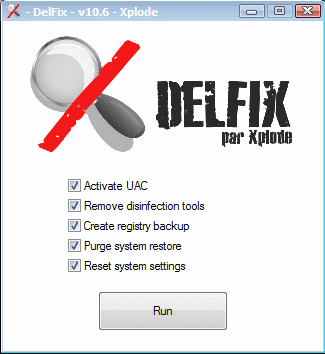

 )
)