This thread's last reply is from September 11, 2011, 3:14 PM UTC. Software, malware, and removal-tool
advice below may be out of date — treat specific steps and download links with caution.
Thanks! This was the contents of the file. The trackpad is still not working, so I will try to reload the driver now. Hope I don't mess it up!
C:\Qoobox\Quarantine\C\programdata\xp\EBLib.dll.vir -> C:\programdata\xp\EBLib.dll ( 32768 bytes )
C:\Qoobox\Quarantine\C\programdata\xp\TPwSav.sys.vir -> C:\programdata\xp\TPwSav.sys ( 11264 bytes )
C:\Qoobox\Quarantine\C\programdata\xp\EBLib.dll -> C:\programdata\xp\EBLib.dll
C:\Qoobox\Quarantine\C\programdata\xp\TPwSav.sys -> C:\programdata\xp\TPwSav.sys
2 File(s) copied
Thanks. let me know if the driver fixes it.
Hi again
I am probably being a dunce - I tried to reinstall the trackpad driver. There seems to be two drivers, I updated the Synaptics driver. It is still not working properly. The pointer moves ok and the buttons work, it is the 'scroll-wheel' bit that still isn't working.
Hope you can help, I am not terribly confident that I am doing this right.
Thanks so much!
EDIT: Sorry, it is the touchpad that I'm struggling with. I also sometimes plug in a USB cordless mouse, but that seems to be working fine. I am just confused between the drivers for the different pointining devices.

Let me know the make and model of the trackpad and I'll see what I can find.
It is the touchpad below the keyboard on the laptop. It is a Toshiba Satelite Pro machine. Does that help?
Plug in the external mouse.
Click on the start button (Windows orb), Right click on computer and select Manage
Click Device manager Then in the middle pane expand Mice and other pointing devices
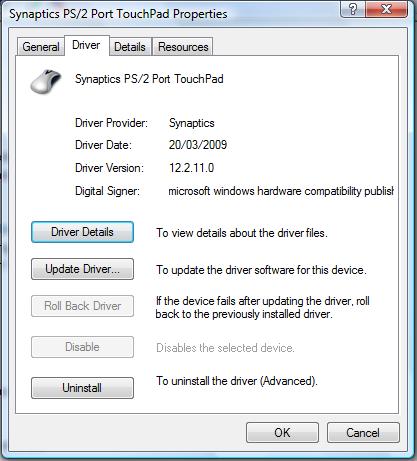
Click on the touchpad (and note the exact name of the touchpad), right click then click properties, click on the Driver tab and make a note of the driver provider and version.
Click on the touchpad then right click and select uninstall
Now click on the computer at the top of the tree using the external mouse, right click and select Scan for hardware changes
The wording may be slightly different as I am using Windows 7 but the process is the same for Vista, let me know how it goes.
Ok, did that. When I restarted the computer automatically re-installed the driver (was it supposed to do that?). I tried to find a setting for the scroll function, but couldn't manage to. It still isn't working. Sorry, don't know what I'm doing wrong.
OK, let me know the driver provider and version and I'll look for a download link for the latest driver.
I have attached a file with the driver info. I think that is the right place to look. Thanks again!
Go here click I agree and then download and run the executable. Then go to the screen in the screenshot and select Update Driver. Windows should find and install the new driver.
Our other option is to use System restore to go back several days.
I (hopefully correctly) did what you suggested. It still hasn't fixed the problem. I can't work out if there is a setting somewhere I have missed.
If I go back to a restore point then it would wipe out the fixes we ran, won't it?
If I go back to a restore point then it would wipe out the fixes we ran, won't it?
Yes, but we can soon re run those fixes now we have the logs to identify what needs to be removed.
Hi NotVeryTechie,
I have done some research into your trackpad, the settings to turn on the scroll wheel should be found under - Control Panel - Hardware - Mouse. Please check to see if it can be enabled from there.
Ok, I give up! Don't know what else to do. I tried your suggestion, but the options are greyed out. So I updated the driver yet again, and it still won't work. So frustrating.
Hi NotVeryTechie,
Ok, I give up! Don't know what else to do. I tried your suggestion, but the options are greyed out.
Were you logged in as with an admin account when you tried to change the options?
Let's continue to make sure the computer is clean.
Run OTL Script
Malwarebytes Anti-Malware
Please download
Malwarebytes' Anti-Malware to your desktop.
- Double-click mbam-setup.exe and select then follow the prompts to install the program.
- At the end, be sure a checkmark is placed next to Update Malwarebytes' Anti-Malware and Launch Malwarebytes' Anti-Malware, then click Finish.
- If an update is found, it will download and install the latest version.
- Once the program has loaded, select Perform quick scan, then click Scan.
- When the scan is complete, click OK, then Show Results to view the results.
- Be sure that everything is checked, and click Remove Selected.
- When completed, a log will open in Notepad. Please post that log in your next reply.
The log can also be found here:
- Launch Malwarebytes' Anti-Malware
- Click on the Logs radio tab.
Note: If MBAM encounters a file that is difficult to remove, you will be presented with 1 of 2 prompts, click OK to either and let MBAM proceed with the disinfection process, if asked to restart the computer, please do so immediately. Failure to reboot will prevent MBAM from removing all the malware.
Please let me know how the computer is running now.

 textbox. Do not include the word Code
 .
.