This thread's last reply is from July 25, 2010, 1:57 PM UTC. Software, malware, and removal-tool
advice below may be out of date — treat specific steps and download links with caution.
Hi smleist.
Continue with the instructions below.
Re-run OTM
NOTE: If you are unable to copy/paste from this window (as will be the case if the machine was rebooted), open Notepad (Start->All Programs->Accessories->Notepad), click File->Open, in the File Name box enter *.log and press the Enter key, navigate to the C:\_OTM\MovedFiles folder, and open the newest .log file present, and copy/paste the contents of that document back here in your next post.
Next.
SystemLook
Please download
SystemLook from one of the links below and save it to your
Desktop.
Download Mirror #1
Download Mirror #2
- Double-click SystemLook.exe to run it.
- Copy the content of the following codebox into the main textfield:
:filefind

*TDSSkiller*
- Click the Look button to start the scan.
- When finished, a notepad window will open with the results of the scan. Please post this log in your next reply.
Note: The log can also be found on your Desktop entitled
SystemLook.txt
Logs/Information to Post in your Next Reply
- OTM log.
- SystemLook.txt
- Please give me an update on your computers performance.
All processes killed
========== FILES ==========
Folder move failed. C:\WINDOWS\system32\1033 scheduled to be moved on reboot.
C:\Program Files\Common Files\cass.exe moved successfully.
========== COMMANDS ==========
[EMPTYTEMP]
User: Administrator
->Temp folder emptied: 0 bytes
->Temporary Internet Files folder emptied: 0 bytes
User: All Users
User: Default User
->Temp folder emptied: 0 bytes
->Temporary Internet Files folder emptied: 0 bytes
User: LocalService
->Temp folder emptied: 0 bytes
->Temporary Internet Files folder emptied: 33170 bytes
User: NetworkService
->Temp folder emptied: 0 bytes
->Temporary Internet Files folder emptied: 33170 bytes
->Flash cache emptied: 0 bytes
User: [redacted]
->Temp folder emptied: 2406 bytes
->Temporary Internet Files folder emptied: 49329339 bytes
->Java cache emptied: 0 bytes
->FireFox cache emptied: 0 bytes
->Google Chrome cache emptied: 0 bytes
->Flash cache emptied: 19307 bytes
%systemdrive% .tmp files removed: 0 bytes
%systemroot% .tmp files removed: 0 bytes
%systemroot%\System32 .tmp files removed: 0 bytes
%systemroot%\System32\dllcache .tmp files removed: 0 bytes
%systemroot%\System32\drivers .tmp files removed: 0 bytes
Windows Temp folder emptied: 10457088 bytes
%systemroot%\system32\config\systemprofile\Local Settings\Temp folder emptied: 0 bytes
%systemroot%\system32\config\systemprofile\Local Settings\Temporary Internet Files folder emptied: 0 bytes
RecycleBin emptied: 0 bytes
Total Files Cleaned = 57.00 mb
OTM by OldTimer - Version 3.1.14.0 log created on 07152010_180250
Files moved on Reboot...
Folder move failed. C:\WINDOWS\system32\1033 scheduled to be moved on reboot.
File C:\WINDOWS\temp\JET46CE.tmp not found!
File C:\WINDOWS\temp\JET47A9.tmp not found!
Registry entries deleted on Reboot...
SystemLook v1.0 by jpshortstuff (11.01.10)
Log created at 18:21 on 15/07/2010 by [redacted] (Administrator - Elevation successful)
========== filefind ==========
Searching for "*TDSSkiller*"
C:\Documents and Settings\[redacted]\Desktop\tdsskiller.exe --a--- 1013584 bytes [22:05 14/07/2010] [22:05 14/07/2010] 67BCB64605D3CDAE1BE01809F004DD94
C:\Documents and Settings\[redacted]\Recent\TDSSKiller.2.3.2.2_14.07.2010_18.05.45_log.txt.lnk --a--- 585 bytes [22:06 14/07/2010] [22:06 14/07/2010] 892F02120D3C7ED2125C04B2066226F5
C:\TDSSKiller.2.3.2.2_14.07.2010_18.05.45_log.txt --a--- 38838 bytes [22:05 14/07/2010] [22:05 14/07/2010] A1C9F5722512BD99A2AF41DC150BB7DF
C:\WINDOWS\Prefetch\TDSSKILLER.EXE-07D9D8B2.pf --a--- 57660 bytes [22:05 14/07/2010] [22:05 14/07/2010] E8B277F8FFEBFD741D32814BD8582ADB
-=End Of File=-
Hi smleist.
Can you confirm that you're searches are still being redirected?
Please download
GMER Rootkit Scanner from
Here.
- Double click the .exe file. If asked to allow gmer.sys driver to load, please consent
- If it gives you a warning about rootkit activity and asks if you want to run scan...click on NO
- In the right panel, you will see several boxes that have been checked. Uncheck the following ...
- IAT/EAT
- Drives/Partition other than Systemdrive (typically C:\)
- Show All << (don't miss this one)
See image below, Click the image to enlarge it
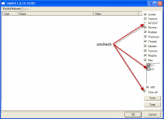
- Then click the Scan button & wait for it to finish
- Once done click on the [Save..] button, and in the File name area, type in "Gmer.txt" or it will save as a .log file
- Save it where you can easily find it, such as your desktop, and post it in your next reply
**Caution**
Rootkit scans often produce false positives. Do NOT take any action on any "<--- ROOKIT" entries
Note: Do not run any programs while Gmer is running.
Logs/Information to Post in your Next Reply
- Gmer.txt log.
- Please give me an update on your computers performance.
Received an error...Dr. Watson postmortum encountered an error and needs to close
Have not run your last instructions yet. Search is working normally.
Hi smleist.
Received an error...Dr. Watson postmortum encountered an error and needs to close
Have not run your last instructions yet. Search is working normally.
If indeed you're searches are no longer being redirected disregard those last instructions for running GMER.
Continue with these instructions please.
Please download
ATF Cleaner to your desktop.
- Double-click ATF-Cleaner.exe to run the program.
- Under Main choose: Select All
- Click the Empty Selected button.
If you use Firefox browser- Click Firefox at the top and choose: Select All
- Click the Empty Selected button.
- NOTE: If you would like to keep your saved passwords, please click No at the prompt.
If you use Opera browser- Click Opera at the top and choose: Select All
- Click the Empty Selected button.
- NOTE: If you would like to keep your saved passwords, please click No at the prompt.
Click
Exit on the Main menu to close the program.
For
Technical Support, double-click the e-mail address located at the bottom of each menu.
Next.
Disable Norton 360
- Right-click the Norton 360 icon in the system tray and select Open Tasks and
Settings Window.
- On the right side, under Settings, click on Change advanced settings.
- Next, click on the Virus & Spyware Protection Settings.
- Uncheck Turn on Auto-Protect and select Apply.
- You will be asked to select a time for Norton to reactivate.
- Choose Until I turn it back on.
- Note: Don't forget to Re-enable it after the below sacn.
Next.
ESET online scannner
Note: You can use either Internet Explorer or Mozilla FireFox for this scan.
Note: If you are using Windows Vista, open your browser by right-clicking on its icon and select 'Run as administrator' to perform this scan.
- Hold down Control then click on the following link to open a new window to ESET online scannner
- Then click on:

Note: If using Mozilla Firefox you will need to download esetsmartinstaller_enu.exe when prompted then double click on it to install.
All of the below instructions are compatible with either Internet Explorer or Mozilla FireFox.
- Select the option YES, I accept the Terms of Use then click on:

- When prompted allow the Add-On/Active X to install.
- Make sure that the option Remove found threats is NOT checked, and the option Scan archives is checked.
- Now click on Advanced Settings and select the following:
- Scan for potentially unwanted applications
- Scan for potentially unsafe applications
- Enable Anti-Stealth Technology
- Now click on:

- The virus signature database... will begin to download. Be patient this make take some time depending on the speed of your Internet Connection.
- When completed the Online Scan will begin automatically.
- Do not touch either the Mouse or keyboard during the scan otherwise it may stall.
- When completed select Uninstall application on close if you so wish, make sure you copy the logfile first!
- Now click on:

- Use notepad to open the logfile located at C:\Program Files\ESET\EsetOnlineScanner\log.txt.
- Copy and paste that log as a reply to this topic.
Logs/Information to Post in your Next Reply
- ESET log.
- Please give me an update on your computers performance.
Sorry family emergency...was out of town. Will reply back tonight
No problem.
Post the results of the ESET scan when ready.
Am unable to to run scan. I click on start, a small window opens, shows "waiting for ...." at the bottom, a yellow shield pops up in front of those words, and internet explorer closes.
Hi.
Did you disable you're AV before running the scan?
We can try another scanner.
Kaspersky Online Scan
You can use either Internet Explorer or Mozilla FireFox for this scan.
Note: If you are using Windows Vista, open your browser by right-clicking on its icon and select 'Run as administrator' to perform this scan.
- Hold down Control then click on the following link to open a new window to Kaspersky Online Scan
- Read through the requirements and privacy statement and click on Accept button.
- It will start downloading and installing the scanner and virus definitions. You will be prompted to install an application from Kaspersky. Click Run.
- When the downloads have finished, click on Settings.
- Make sure these boxes are checked (ticked). If they are not, please tick them and click on the Save button:
- Spyware, Adware, Dialers, and other potentially dangerous programs
- Archives
- Click on My Computer under Scan. * This will take a while. Please be patient *.
- Once the scan is complete, it will display the results. Click on View Scan Report.
- You will see a list of infected items there. Click on Save Report As....
- Save this report to a convenient place. Change the Files of type to Text file (.txt) before clicking on the Save button.
- Please post this log in your next reply.
This online tutorial will help explain how to use the aforementioned online scan.
--------------------------------------------------------------------------------
KASPERSKY ONLINE SCANNER 7.0: scan report
Tuesday, July 20, 2010
Operating system: Microsoft Windows XP Home Edition Service Pack 3 (build 2600)
Kaspersky Online Scanner version: 7.0.26.13
Last database update: Monday, July 19, 2010 21:31:18
Records in database: 4228926
--------------------------------------------------------------------------------
Scan settings:
scan using the following database: extended
Scan archives: yes
Scan e-mail databases: yes
Scan area - My Computer:
B:\
C:\
D:\
E:\
F:\
G:\
H:\
Scan statistics:
Objects scanned: 136505
Threats found: 4
Infected objects found: 8
Suspicious objects found: 0
Scan duration: 04:02:55
File name / Threat / Threats count
C:\Documents and Settings\[redacted]\My Documents\Downloads\360 norton\keygen\keygen1.exe Infected: Worm.Win32.VBNA.b 1
C:\Qoobox\Quarantine\C\Program Files\System Search Dispatcher\1.4.3.1040\ssd.dll.vir Infected: not-a-virus:AdWare.Win32.Agent.pml 1
C:\Qoobox\Quarantine\C\WINDOWS\system32\Drivers\tcpip.sys.vir Infected: Rootkit.Win32.TDSS.ap 1
C:\Qoobox\Quarantine\C\WINDOWS\system32\ernel32.dll.vir Infected: Backdoor.Win32.TDSS.ud 1
C:\Qoobox\Quarantine\C\WINDOWS\system32\spool\prtprocs\w32x86\7aAA7k3.dll.vir Infected: Backdoor.Win32.TDSS.ud 1
C:\Qoobox\Quarantine\C\WINDOWS\system32\spool\prtprocs\w32x86\9aAA9k17g.dll.vir Infected: Backdoor.Win32.TDSS.ud 1
C:\Qoobox\Quarantine\C\WINDOWS\system32\spool\prtprocs\w32x86\I7931q.dll.vir Infected: Backdoor.Win32.TDSS.ud 1
C:\_OTM\MovedFiles\07152010_180250\C_Program Files\Common Files\cass.exe Infected: Worm.Win32.VBNA.b 1
Selected area has been scanned.
Hi smleist.
Cracked/Keygen related software detected!!!
While going through your logs I found out that you have downloaded
keygen/cracked software and that you are actively using it.
360 norton
Our forum policy
Here says we will not help people who use cracked or pirated software.
You likely got infected by using cracked software or visiting crack sites.
Hence, i would like you to remove all the
crack/keygen applications that are present on your system
NOTE: If you give me advice that the
software/Keygens have been removed & I find it has not
(the tools we use can & will detect it) then I will have no choice but to have this thread closed.
Here is a list of free Antivirus applications.
- Avira Personal FREE Antivirus - Free anti-virus software for Windows. Free support.
- avast! 5 Home Edition - Anti-virus program for Windows. The home edition is freeware for noncommercial users.
- Microsoft Security Essentials - Free and provides real-time protection for your home PC.
Note: You should run only one antivirus program at a time. Having more than one antivirus program active in memory uses additional resources and results in program conflicts and false virus alerts.
Please decide what you are going to do & let me know.
Thank you, I switched to Avira, and have removed Norton completely.
Hi smleist.
Thank you, I switched to Avira, and have removed Norton completely.
Thank you for you're cooperation.
How is you're PC performing now any problems?
Run CKScanner
- Please download CKScanner from Here
- Important: - Save it to your desktop.
- Double-click CKScanner.exe and click Search For Files.
- After a very short time, when the cursor hourglass disappears, click Save List To File.
- A message box will verify the file saved.
- Double-click the CKFiles.txt icon on your desktop and copy/paste the contents in your next reply.
Next.
Please post an Uninstall list.
- Open HijackThis.
- Click on the Open the Misc Tools section button.
- Look under System tools.
- Click on the Open Uninstall Manager... button.
- Click on the Save list... button.
- It will prompt you to save. Save this log in a convenient location. By default it's named uninstall_list.txt.
- Notepad will open. Please post this log in your next reply.
Next.
Please run
ATF Cleaner again it should still be on you're desktop
Next.
I see you have
Malwarebytes Anti-Malware: installed
- Launch the application, Check for Updates >> Perform Quick Scan.
- When the scan is complete, click OK, then Show Results to view the results.
- Check all items except items in the C:\System Volume Information folder... and click Remove Selected.
Note: If MBAM encounters a file that is difficult to remove, you will be presented with 1 of 2 prompts, click OK to either and let MBAM proceed with the disinfection process, if asked to restart the computer, please do so immediately. Failure to reboot will prevent MBAM from removing all the malware. - When completed, a log will open in Notepad. please copy and paste the log into your next reply.
- The log can also be found here:
C:\Documents and Settings\Username\Application Data\Malwarebytes\Malwarebytes' Anti-Malware\Logs\mbam-log-date (time).txt
Logs/Information to Post in your Next Reply
- CKFiles.txt
- Uninstall list.
- Malwarebytes log.
- Please give me an update on your computers performance.
CKScanner - Additional Security Risks - These are not necessarily bad
c:\program files\sony online entertainment\installed games\free realms\resources\bs_cracked_claw_cavernsareas.xml
c:\program files\sony online entertainment\installed games\free realms\resources\sky\sky_cracked_claw_caverns.xml
scanner sequence 3.AA.11
----- EOF -----



 button.