This is a read-only archive of malwareremoval.com. No new posts or registrations. Privacy Page
Malware Removal Forums

Need help Comodo reported "system .... ksnapshot.etl"

31 min read

This thread's last reply is from June 30, 2009, 4:58 PM UTC. Software, malware, and removal-tool advice below may be out of date — treat specific steps and download links with caution.

oops!

After I posted the result from Jotti, I decided to look at the log.txt and the contain is as follow:

"The system cannot find the file `dir\*ksnapshot*.*etl*/l/a/s/b`."
Looks like there's a problem with my code... we'll do this the other way:

Show hidden files and folders
We need to slightly adjust your settings.

  • Open the Control Panel (Start > Control Panel)
  • Double-click Folder Settings
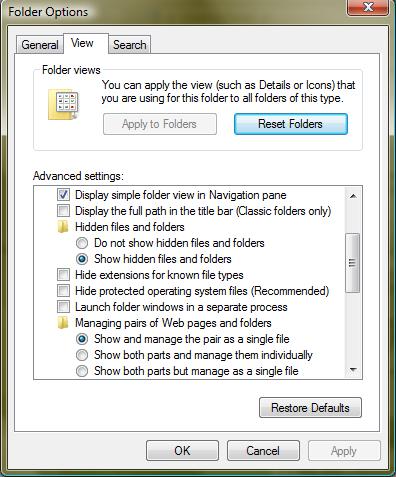
  • On the View tab, uncheck Hide protected system files (recommended). A warning will show, just click Yes.
  • Check Show the contents of system directories
  • Uncheck Hide extensions for known file types
  • Scroll down and choose Show hidden files and folders
  • Press OK to save changes.


Press Windows key + R and copy and paste this:
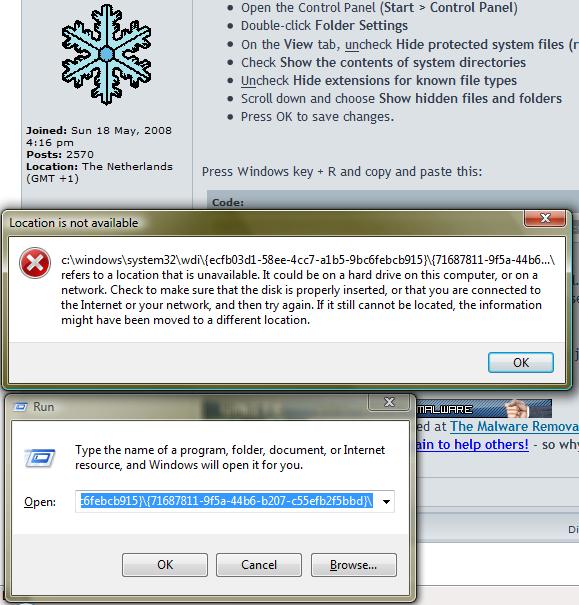
c:\windows\system32\wdi\{ecfb03d1-58ee-4cc7-a1b5-9bc6febcb915}\{71687811-9f5a-44b6-b207-c55efb2f5bbd}\

click OK. A folder should open, containing the file ksnapshot.etl.
Right click the file ksnapshot.etl and choose Send To>Compressed Folder
move this compressed folder to your desktop

Then run your browser as administrator and upload the file you just dragged towards your desktop to Jotti using my previous instructions.
Hi OD,

Attached is a picture of my folder setting.

I don't know if or what I'm doing wrong.
You're not doing anything wrong. Something is going wrong, but I can't tell why.

Let's run some scans to make sure it's not malware interfering. Both these tools need to be run as administrator.

GMER
Do not touch the computer while GMER is running! If you do, it'll go completely unresponsive and you'll have to shut it down using the power switch. Just don't touch the PC while GMER is working.
Please download gmer.zip by GMER and save it to your desktop.

  • Right click the file you just downloaded and choose Extract all
  • Click Next
  • Click Browse
  • Click the + next to My Computer
  • Click Local Disk (C:)
  • Click Make new folder
  • Enter GMER
  • Click OK, then Next
  • Check Show extracted files and click Finish
  • Double click on GMER.exe to run it.
  • Select the Rootkit tab.
  • On the right hand side, check all the items to be scanned, but leave Show All box unchecked.
  • Select all drives that are connected to your system to be scanned.
  • Click on the Scan button.
  • When the scan is finished, click Copy to save the scan log to the Windows clipboard.
  • Open Notepad or a similar text editor.
  • Paste the clipboard contents into the text editor.
  • Save the GMER scan log and post it in your next reply.
  • Close GMER.


DDS (Doesn't Do Squat)
Download DDS by sUBs to your desktop.
Your antivirus software might question the file. If it does, turn it off please :)
  • Double click DDS.scr to run it and wait for the scan to finish
  • When finished DDS.txt will open
  • A small while later, a prompt will open. Answer Yes
  • DDS will continue scanning
  • When done, Attach.txt will open
  • Post DDS.txt and attach Attach.txt
Hi OD,

The result contain too many characters to paste into the forum.

I attached the txt file.

Thanks

Attachments:

Hi MrHaku :)

The GMER log is, albeit massive, clean of infection.

You didn't run DDS - did you forget? It's not a problem, don't worry.

All scans you ran were clean, all additional scans I had you run were clean, this means there's a very good chance that there is no malware on your computer.

That said, the whole ksnapshot.etl thing intrigues me, as my research about it has not been conclusive. We need to get the file checked out.

As all automated methods for searching have failed, and manual grabbing didn't work out either, let's give it one last shot.

I hope you don't mind, but for this step I would like you to turn off the protective UAC feature. The whole run-as-administrator-thing has been a bit cumbersome, and as I myself don't have Vista it's not exactly clear to me what needs to be run as administrator and what doesn't.

Temporarily disable UAC
You need to temporarily disable Vistas User Account Control, as it may interfere with some of the tools we use
  • Click the Start button and then Control Panel
  • In the control panels lefthand pane, make sure Control Panel Home is selected
  • In the righthand pane, click User Accounts and Family Safety
  • Click User Accounts
  • Click Turn User Account Control on or off
  • If Use UAC to protect your computer doesn't have a checkmark, skip to the next step
  • If it does, remove the checkmark, press OK and then restart your computer

Note:
We'll re-enable UAC again after we're done cleaning your computer.

Now, press Windows key + F and do a search for ksnapshot.etl
Be sure to select Everywhere from the drop-down-box containing locations, not just the default of Indexed Locations.
In the Advanced Search area, click to select the Include non-indexed, hidden, and system files (might be slow) checkbox.

The search should turn up with at least one hit. Select one of the files which were found and drag it to your desktop while pressing the Ctrl button. The file will now be copied to your desktop.
No
Go to the Jotti site and now see if you can upload the ksnapshot.etl which had been copied to your desktop.

Then re-enable UAC. Use the same instructions, but instead of unchecking, now check the checkbox.

Hi OD,

It found 4 versions of the ksnapshot.etl file. Each of those file is about 4mb. I copy each of the file and uploaded them to Jotti's one at a time, but result of all the run is "none found".

I can see from the result of GMER that their are a lot of junk on the system. Some even was stop during the startup. Is there away to clean the system of these junk.

I like having uac off is there a danger having this off. I already have teatimer and comodo running.

Thanks
If it says none found then this is good news :)

The GMER results do not show junk. They show all programs that have modified Windows functions in order to intercept certain calls. Some malware can do this, but more importantly, it is done by every single antivirus program to ensure that files are scanned before being allowed to run.

I understand why you prefer UAC to be off, and it's really up to you. The big danger of keeping it off is that it disables certain built-in sandboxing technologies, and it does not ask for any confirmation when a program wants to change sensitive things on your computer. The advantage is that those annoying prompts go away. As long as your protection software is adequate you should be fine, but there is always the risk of something not being picked up, in which case UAC might be the only difference between infection and no infection.
This is a decision you have to make - if you are satisfied with your current protection, and have sufficiently good surfing habits that that extra safety net UAC provides is more of a burden than a rescue, then you may want to keep it off. But, being the overcautious (read: paranoid) malware fighter I am, I would keep it on if it were my own computer.

Well, it has turned out that there is no malware on your system. This is my standard post for clean machines:

Rehide hidden files and folders
Now let's reverse the changes we made.

  • Open the Control Panel (Start > Control Panel)
  • Double-click Folder Settings
  • On the View tab, check Hide protected system files (recommended).
  • Uncheck Show the contents of system directories
  • Check Hide extensions for known file types
  • Scroll down and choose Do not show hidden files and folders
  • Press OK to save changes.


If you don't have any other issues, then I think all the malware is gone!


Congratulations!


As far as I can tell, you are CLEAN!


Now feel free to delete any tools we used and any log files we made. You can just delete them from your desktop as you would any other file.

Have a big cup of , sit back & relax, and now please follow a few of the following tips; they will dramatically reduce your chance of getting infected again.
  • Turn on Automatic Updates if you have not done so. It is MANDATORY to keep your Windows updated, otherwise you are vulnerable to exploits! To turn on Automatic Updates: click Start > Control Panel > Security Centre > Automatic Updates.


Below are optional items. They will increase your security, but are not really "needed". That said, I recommend following at least one of these tips.

  • Install WinPatrol from here. Instructions for use are here.

  • Install a custom hosts file. Let's say I have a directory of 640kb's worth of bad sites. Let's say I can make sure you will never be able to access those sites, so you will never get any infection from those sites. It's like blocking a site - without site blocking tools. How would you like to never be able to visit (a lot, but not all of the) malware-infected sites again? Well, now you can!
    First, we must disable a service, as Windows cannot work with a very large hosts file while that service is active. This will not affect anything else.
    The disabling routine:
    • Click Start, then Run
    • Copy and paste the following:
      sc config dnscache start= disabled
    • Click OK

    Next, you can download the custom hosts file from here. Installation instructions can be found there as well.


Please reply to this thread once more so we know it can be archived

Happy surfing!! :)
THANKS OD! :cheers: :cheers: :cheers:

Do you know how to clean up those unwanted services or program?

Haku
Only glad to help :mrgreen:

What do you mean by "those" unwanted services or programs?
The services that are stop during the startup. My bootup time is much longer now.

How to remove quarantine files?

Thanks
I'm sorry, I don't think I understand what you mean - what services and what quarantined files do you mean?
Hey MRHaku,
It's been 3 days - do you still need help?
Thank you for all your help OD. You fix the problem with ksnapshot.etl!

As for the services/problem the I stop during the startup process, I will uninstall stuff until they go away.

You can close this up if you want.

Haku
As your problems appear to have been resolved,