davis
Hi Striefsky2,
The logs look good. Any issue left? If not, let's do some housecleaning.
Step1
Click START then RUN
Now copy/paste Combofix /u in runbox and click OK.
Note the space between the X and the U, it needs to be there.
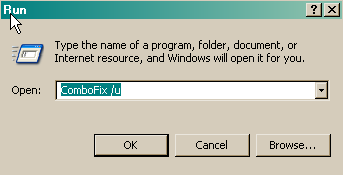
This will uninstall Combofix, delete its related folders and files, reset your clock settings, hide file extensions, hide the system/hidden files and resets System Restore again.
Step2
Please download OTCleanIt and save it to desktop.
Double-click OTCleanIt.exe.
Click the CleanUp! button.
Select Yes when the "Begin cleanup Process?" prompt appears.
If you are prompted to Reboot during the cleanup, select Yes.
The tool will delete itself once it finishes, if not delete it by yourself.
Note: If you receive a warning from your firewall or other security programs regarding OTCleanIt attempting to contact the internet, please allow it to do so.
Now that your system is clean, kindly follow these simple steps in order to keep your computer clean and secure:
Please check out Tony Klein's article "How did I get infected in the first place?"
Read some information Here how to prevent Malware.
Glad to be of help. Safe surfing!!
The logs look good. Any issue left? If not, let's do some housecleaning.
Step1
Click START then RUN
Now copy/paste Combofix /u in runbox and click OK.
Note the space between the X and the U, it needs to be there.
This will uninstall Combofix, delete its related folders and files, reset your clock settings, hide file extensions, hide the system/hidden files and resets System Restore again.
Step2
Please download OTCleanIt and save it to desktop.
Double-click OTCleanIt.exe.
Click the CleanUp! button.
Select Yes when the "Begin cleanup Process?" prompt appears.
If you are prompted to Reboot during the cleanup, select Yes.
The tool will delete itself once it finishes, if not delete it by yourself.
Note: If you receive a warning from your firewall or other security programs regarding OTCleanIt attempting to contact the internet, please allow it to do so.
Now that your system is clean, kindly follow these simple steps in order to keep your computer clean and secure:
- Update your antivirus programs
Update your Antivirus programs and other security products regularly to avoid new threats that could infect your system. You can use one of these sites to check if any updates are needed for your pc.
Secunia Software Inspector
F-secure Health Check
- Make your Internet Explorer more secure
Please referring this thread to configure Internet Explorer 7 properly.
- Install SpywareBlaster - SpywareBlaster will added a large list of programs and sites into your Internet Explorer settings that will protect you from running and downloading known malicious programs.
A tutorial on installing & using this product can be found here:
Using SpywareBlaster to protect your computer from Spyware and Malware
- Install a-squared Free -a-squared free is a product from Emsi Software provided free for private use that can detect and remove a variety of malicious software. If you have a dialup internet connection, you may also like to install a-squared Anti-Dialer which provides some real time protection against premium rate dialers
A tutorial on installing & using this product can be found here:
Clean your PC with a-squared Free
- Update all these programs regularly - Make sure you update all the programs I have listed regularly. Without regular updates you WILL NOT be protected when new malicious programs are released.
Please check out Tony Klein's article "How did I get infected in the first place?"
Read some information Here how to prevent Malware.
Glad to be of help. Safe surfing!!